Below you'll find answers to the most asked questions about our embroidery software.
If your question isn't there simply email us at
support@data7consultancy.com
There are several reasons why your Data 7 app may not activate:
- The email/username or password entered does not match your Data 7 account.
- Your device is not connected to the Internet, preventing activation.
- Your free trial has expired (you can request an extension).
- You have no spare purchased licences available.
- Your account email has not been verified yet. Click here to request an activation email
- Your account is locked.
If you still experience issues and require assistance on any of the above, please contact
support@data7consultancy.com.
Windows SmartScreen Prevented An Unrecognized App From Running. Running This App Might Put Your PC At Risk. How do i fix this?
Applies to all Windows versions
When trying to install any Data 7 programs you see the below message.
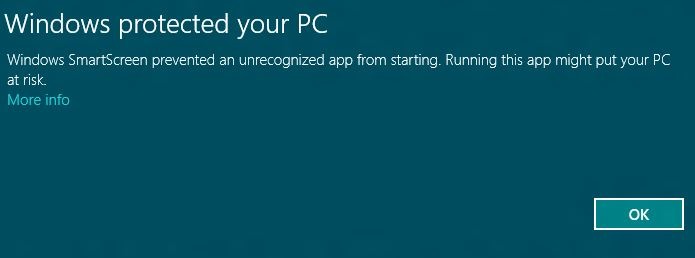
The SmartScreen protection feature in Windows is responsible for generating the above message. This feature is designed to safeguard users against malware.
The SmartScreen protection feature in Windows is responsible for generating the above message. This feature is designed to safeguard users against malware.
Typically, SmartScreen Protection displays this message when you attempt to run a newly released program or an application that has not yet established a trusted reputation.
We strongly discourage disabling the SmartScreen Protection feature or turning off this security measure in Windows.
Rest assured, our software is completely safe to install. It has been thoroughly scanned using the latest antivirus software and up-to-date pattern files to ensure its security and reliability.
To install our software, please follow these steps:
Double-click the program you wish to run or install. When the SmartScreen message appears, click on the "More info" link to view the publisher's name and the application file name.
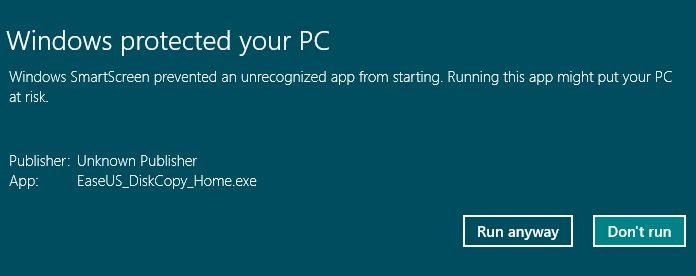
Finally, click the "Run anyway" button to proceed with running the application. This should resolve the issue.
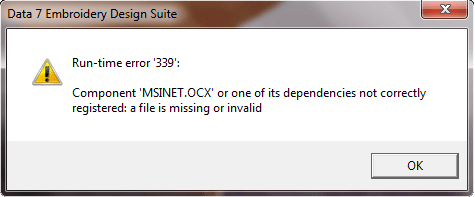
Run-time error '339':Component 'MSINET.OCX' or one of it's dependencies not correctly registered: a file is missing or invalid. How do i fix this?
Applies to Windows 7
After installing the EDS or conversion program you may see the below error (see Image):-
This means that one of the files required to run our software has not or is no longer registered correctly on your computer.
To fix this problem follow these instructions:-
- Go to Start and type "cmd" (without the quotes)
- Then right click on the cmd.exe at the top of the Search box and select "Run as administrator"
- Type "regsvr32 msinet.ocx" and press Enter.
This should re-register the file and the EDS or conversion tool should run normally
Error 52: Bad file name or number; I see error 52 when starting the EDS for the first time. How do i fix this?
After installing the EDS program and running for the first time you may see the following error:-
Error 52: Bad file name or number
The above error sometimes happens if the EDS software didn't install correctly which resulted in the design paths not being setup correctly.
To fix this, when you see this error (52) press the 'ignore' button until you get in to the program.
Then choose “tools\system options” from the menu bar at the top and you’ll see the screen below.
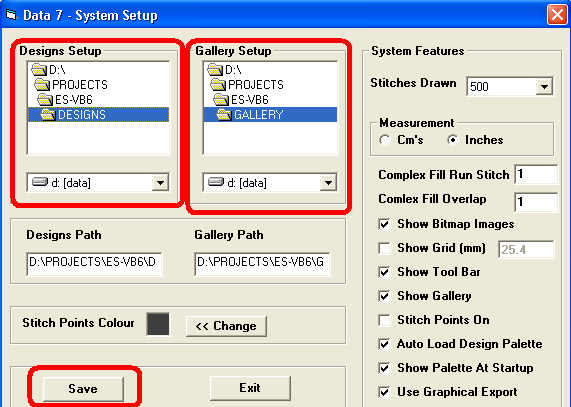
Simply choose the paths for your “designs” and “gallery” and then click save. The paths "Designs" and "Gallery" are folders
that should have been created in the Data 7 application folder when you installed the EDS however if you see the above error it is possible that they
may not have been created. In this case simply choose a folder to store your designs and thumbnails (gallery pictures). This can be a folder that already
exists with your design in.
This should fix the problem
Can the Conversion Tool or EDS software convert from image files such as JPG or TIF direct to an embroidery design file?
No. The Data 7 Conversion Tool simply converts from one embroidery file format to another. Support formats are shown in the links below.
However, the new Data 7 - ICE app can. See the product page for more details.
The Data 7 EDS software however can be used to manually digitise design from images either on you computer or scanned. This is done
by loaded the images and then using the EDS to manually digitise the outlines of images etc... For more information please see the respective pages here:-
Click here for info on Data 7 Conversion Tool
Click here for info on Data 7 EDS
I still see the 60 second adverts after I've installed the FULL version of the Data 7 Conversion Tool . How do I Fix this?
This problem usually occurs if the trial versions of the conversion tool or Data 7 EDS have NOT been uninstalled first.
To fix this problem simply run the Data 7 install packages for the Data 7 Trial
versions again but this time choose the "Remove All" option. This will
remove all the trial versions you have installed. After uninstalling reboot your PC and then install the FULL version again.
This should fix the above issue.
What embroidery machine file formats are supported ?
Click here to see all supported formats.
What are the System requirements for Data 7 Embroidery Software?
The minimum system requirements for your computer to run Data 7 Embroidery Software
are:
30MB hard disk space to install the program; Pentium processor;
128MB RAM; Computer Monitor capable of 1024x768 display resolution; A Windows
compatible mouse or Tablet; Win95 or higher operating system; and a USB port.
"Norton Not Safe" message shows when I download Data 7 Software
The reason you are seeing this message is because Norton doesn't yet have a reputation score for this Data 7 software.
It doesn't mean the software is unsafe. As long as you have downloaded directly from the Data 7 website, this is completely safe.
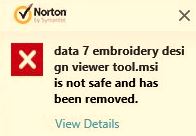
For more information about this error and how to fix it please visit the below link which is Norton's forum.
Click here for more info